Dear parent, if you’ve ever wondered how to introduce your child to the exciting world of technology, electronics, and coding, Arduino is the perfect starting point. The Arduino Uno is one of the most beginner-friendly microcontroller boards, designed to make learning both simple and fun. With Arduino, kids can take their creative ideas and turn them into real-life projects—whether it’s blinking an LED, building a simple robot, or creating interactive gadgets that respond to their commands.
What makes Arduino special is that it combines play with practical learning, turning STEM (Science, Technology, Engineering, and Maths) into a hands-on adventure. Instead of just reading about technology, children get to explore it, experiment with it, and see their imagination come alive.
In this guide, we’ll walk you through the basics of Arduino, explain its key components, highlight why it’s an excellent choice for kids, and share 15 beginner-friendly Arduino projects that will inspire your child to learn, build, and innovate with confidence.
What is Arduino?
Arduino is an open-source electronics platform that makes coding and building interactive projects easy for beginners. At its core, it includes two main parts:
- A microcontroller board (such as the popular Arduino Uno) that acts like the “brain” of a project.
- The Arduino IDE (Integrated Development Environment), a free software where you can write and upload code to the board.
With Arduino, kids don’t just watch technology—they create it. They can:
- Read real-world data from sensors (like temperature, light, or motion).
- Control devices and actuators (such as LEDs, buzzers, motors, or relays).
- Build their own gadgets, games, and even simple robots from scratch.
Because it’s designed to be simple, safe, and affordable, Arduino is the perfect starting point for kids, parents, beginners, and hobbyists who want to explore electronics and coding in a fun, hands-on way.
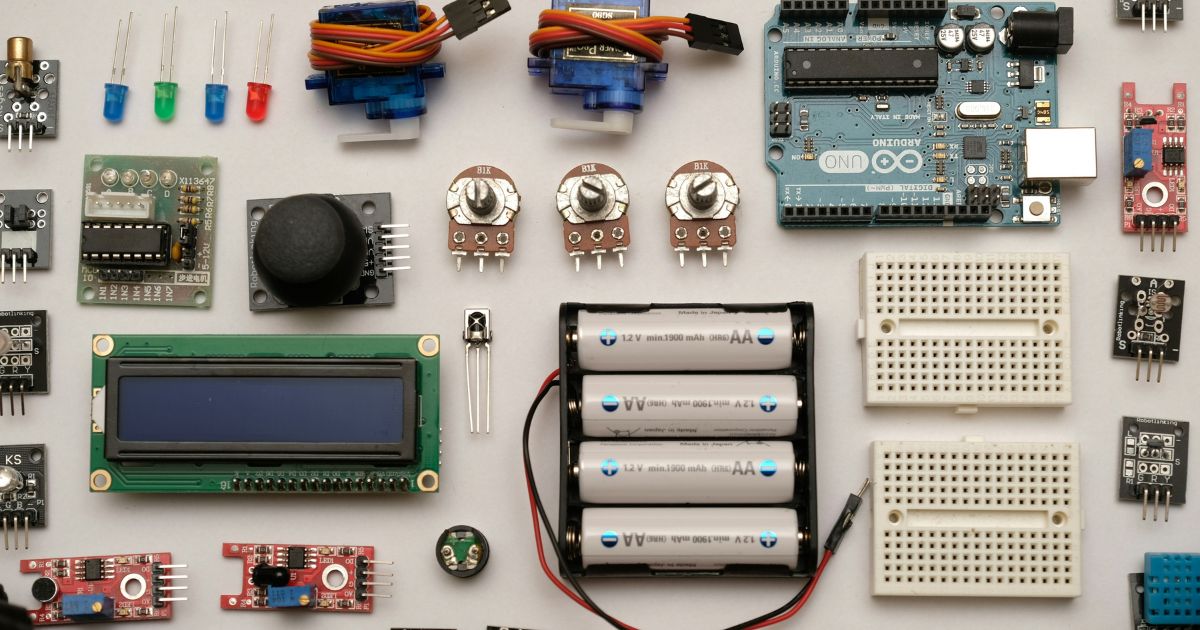
Benefits of Learning Arduino for Kids
Learning Arduino isn’t just fun—it’s a powerful way to build real-world skills that will benefit your child for years to come.
- Hands-On Learning: Instead of only reading about technology, kids get to connect real components, write simple code, and instantly see their ideas come to life.
- Boosts Problem-Solving Skills: Every project encourages children to think logically, troubleshoot mistakes, and find creative solutions—skills they’ll use in school and beyond.
- Unlimited Creativity: Arduino gives kids the freedom to design unique projects, from blinking light patterns to mini robots, empowering them to invent and innovate.
- STEM Gateway: Arduino is the perfect introduction to Science, Technology, Engineering, and Maths. Kids learn coding, electronics, and engineering concepts in a playful, hands-on way that feels more like fun than study.

Overview of Arduino Uno
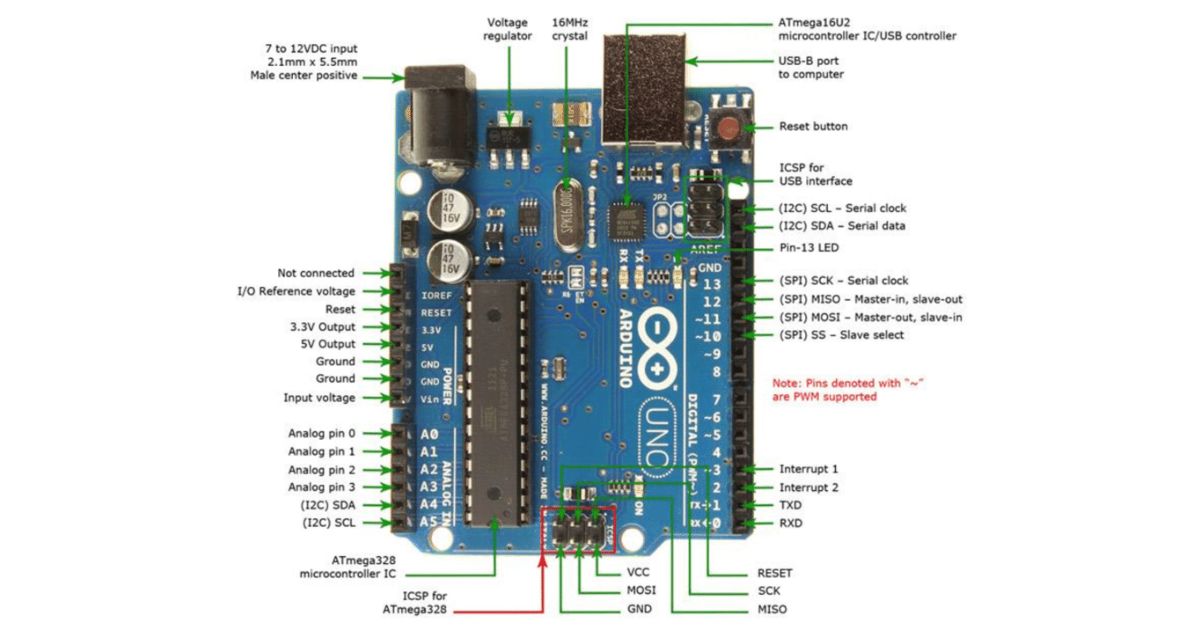
The Arduino Uno is one of the most widely used microcontroller boards in the world, loved by beginners and professionals alike. Built around the ATmega328P microcontroller, it is simple, affordable, and highly versatile for countless electronics and embedded systems projects. The board comes with 14 digital input/output pins (of which 6 can be used as PWM outputs), 6 analogue inputs, a 16 MHz quartz crystal, a USB connection, a power jack, an ICSP header, and a reset button. Whether you want to build a simple LED blinker, an IoT device, or a robotics project, the Arduino Uno is an excellent starting point thanks to its balance of power, ease of use, and community support.Key Components of the Arduino Uno
Let’s break down the major parts of the Arduino Uno and their functions:- Microcontroller (ATmega328P): The “brain” of the board that processes instructions and controls all operations.
- Reset Button (S1): Resets the microcontroller and restarts the program running on the board.
- USB Connector: Used to upload Arduino sketches (programs) from your computer, communicate via serial monitor, and even power the board.
- Power Jack (X1): Allows you to power the Uno using an external power supply when USB isn’t an option.
- Voltage Regulator: Ensures the input power is stable and within safe limits for the board’s components.
- Crystal Oscillator: Provides accurate timing signals to keep the microcontroller running in sync.
- ICSP Header: Enables programming of the ATmega328P using an external programmer.
- Power and Ground Pins: Essential for connecting external sensors, modules, and circuits to the board.
- Analogue Input Pins (A0–A5): Read analogue signals from sensors such as temperature or light sensors.
- Digital I/O Pins (0–13): Handle digital input and output. Some pins also support PWM and SPI communication for advanced projects.
Getting Started with Arduino Projects for Kids
Are you ready to explore Arduino with your kids? Awesome! Arduino is an incredible platform that allows kids to bring their creative ideas to life through hands-on projects. Let’s get started!Essential Components for Arduino Projects
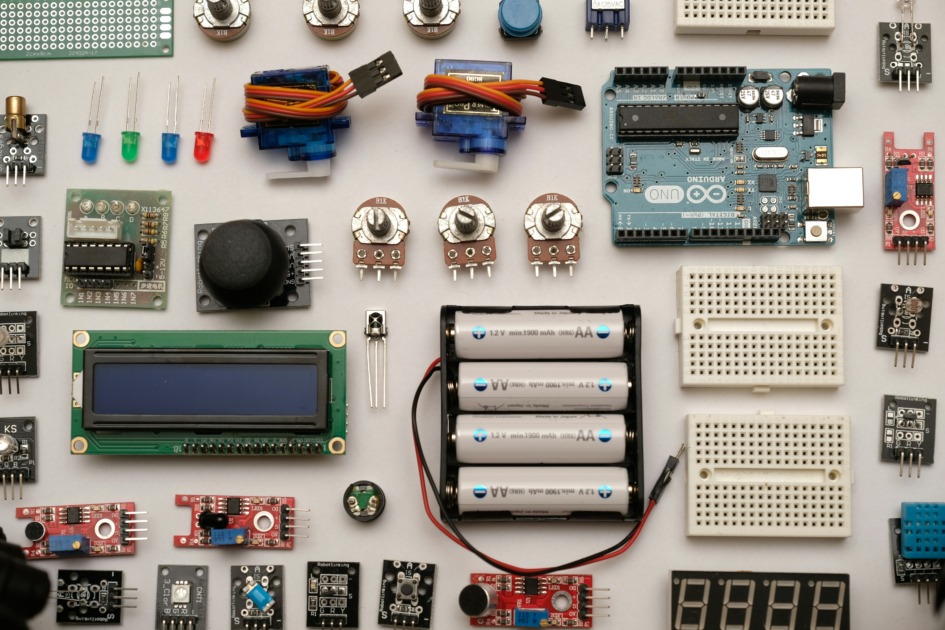
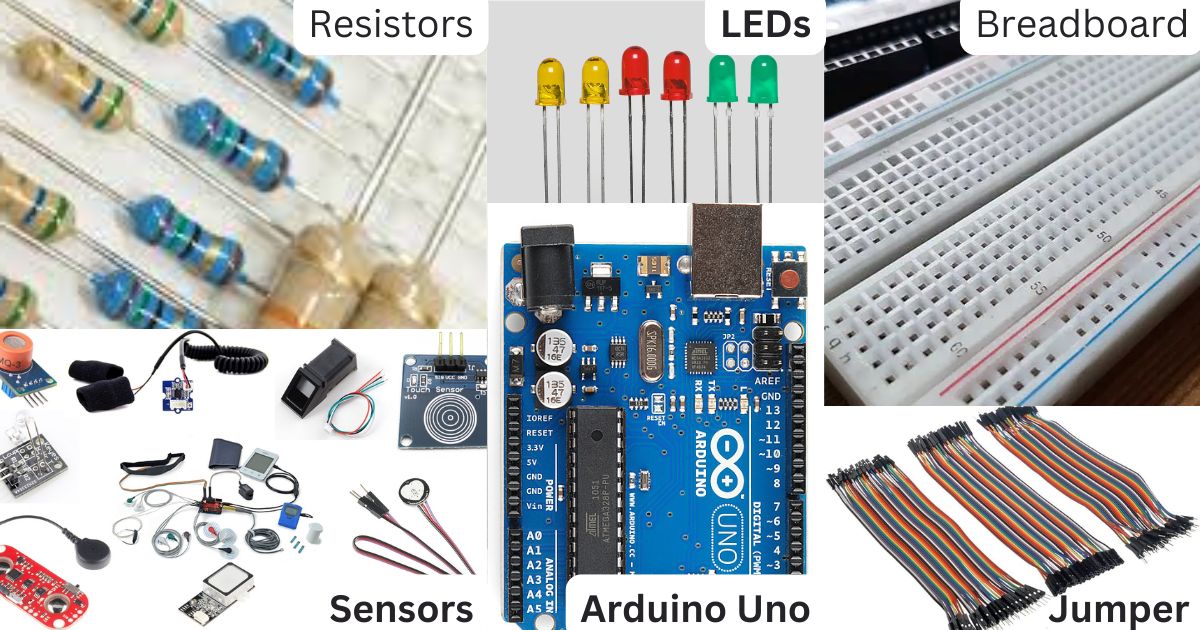
Don’t worry, you don’t need to be an electronics expert to get started. Arduino makes it easy to put these components together and start building. Here’s what you’ll need:- Arduino Board: Start with the Arduino Uno—it’s ideal for beginners!
- Breadboard: A standard breadboard makes prototyping easy without any soldering required.
- Jumper Wires: Use these to connect everything on your breadboard.
- Sensors and other components: Think LEDs, resistors, buttons, motors, and various sensors like temperature, light, and distance sensors.
Arduino Basics: Essential Terminology and Concepts for Beginners
New to Arduino? No problem! Let’s go over some basic terms and concepts to help you get started on the right foot. This guide will help you build a strong foundation, so you can confidently program and use various Arduino components.- Microcontroller: The central processing unit of your Arduino board. It’s what makes everything happen!
- Sketch: The term used for your Arduino program or code. You write your sketches in the Arduino IDE and upload them to your board.
- Pins: These are the connection points on your Arduino board. You can attach wires, sensors, LEDs, and more!
- Digital vs. Analog Pins: Digital pins can be either HIGH (on) or LOW (off), perfect for things like buttons and LEDs. Analog pins can read a range of values, great for sensors like potentiometers or temperature sensors.
- Breadboard: A reusable plastic board with a grid of holes for prototyping electronic circuits without soldering. It allows you to easily connect and test components with your Arduino.
- IDE (Integrated Development Environment): The software you use to write, compile, and upload code to your Arduino board. It provides a user-friendly interface for programming.
- Library: A collection of pre-written code that extends the capabilities of your Arduino. Libraries make working with specific sensors, displays, or other functionalities easier.
- Serial Monitor: A tool in the Arduino IDE that allows you to send and receive data between your computer and the Arduino board. It’s great for debugging and testing.
- PWM (Pulse Width Modulation): A technique used to create analog-like output on digital pins. It’s commonly used for controlling LED brightness or motor speed.
- Shield: An add-on board that plugs directly into your Arduino, extending its capabilities. Shields can add features like Wi-Fi, motor control, or additional sensors.
Setting Up For Your First Arduino Project
Alright, let’s get set up for your first Arduino project! Here’s a simple step-by-step guide to get you started:Step 1: Gather Your Supplies
- Arduino Uno Board: others are Arduino Nano or Mega.
- USB Cable: Type A to Type B (for most Arduino boards).
- Computer: To install the Arduino IDE and upload sketches.
- Arduino IDE: Software to write and upload code.
Step 2: Download the Arduino IDE
- Visit the Arduino website and download the latest version of the Arduino IDE for your operating system (Windows, macOS, or Linux).
Step 3: Install the Arduino IDE
- Windows:
- Double-click the downloaded installer.
- Follow the prompts to install the software.
- macOS:
- Open the downloaded
.dmgfile. - Drag the Arduino IDE to your Applications folder.
- Open the downloaded
- Linux:
- Extract the downloaded archive and run the installation script.
Step 4: Connect Your Arduino Board
- Use the USB cable to connect your Arduino board to your computer.
- A power LED on the board should light up, indicating it is powered.
Step 5: Install Drivers (if necessary)
- Windows: If the board is not recognized, you may need to install drivers manually:
- Open Device Manager and look for the Arduino under “Ports (COM & LPT)”.
- Right-click and select “Update Driver Software” to install the appropriate drivers.
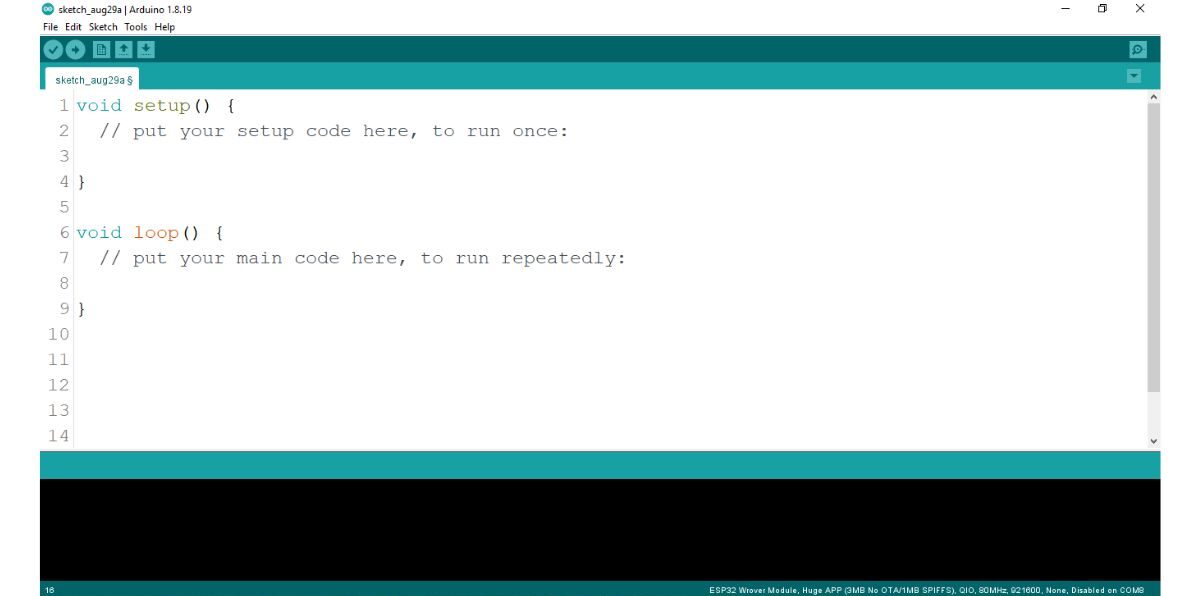
Step 6: Open the Arduino IDE
- Launch the software and start exploring.
Step 7: Select Your Board and Port
- In the IDE, go to Tools > Board and select the appropriate Arduino model (e.g., Arduino Uno).
- Then, go to Tools > Port and select the COM port associated with your Arduino board.
Step 8: Upload Your First Sketch
- Open an example sketch by navigating to File > Examples > Basics > Blink.
- Click the Upload button (right arrow icon) in the IDE toolbar.
- Wait for the message “Done uploading” to appear.
Step 9: Observe the Results
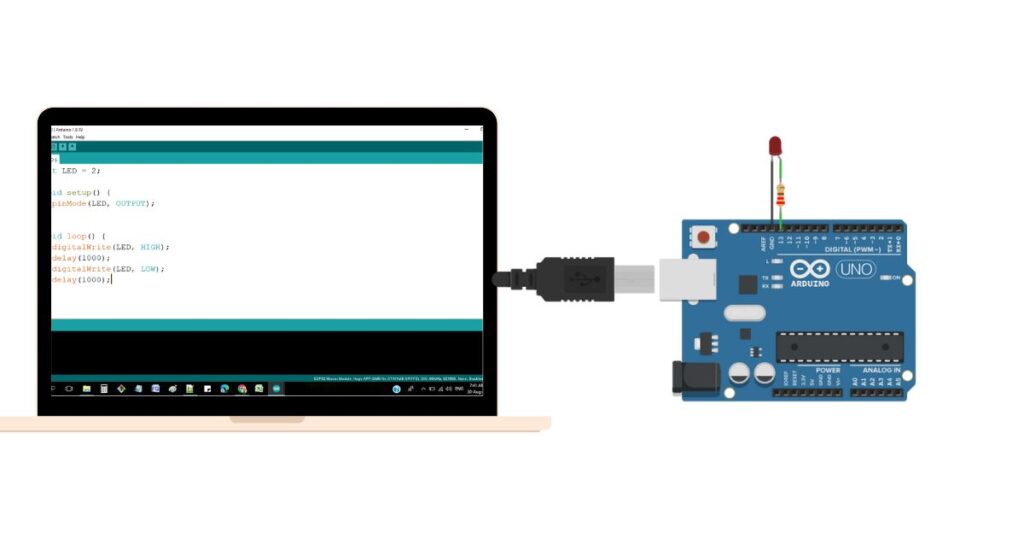
- After uploading, the built-in LED on pin 13 of the Arduino board should start blinking, indicating that your setup is successful.
Step 10: Start Experimenting
- Okay, now for the fun part! It’s time to start making your cool stuff. Try writing your code (we call them “sketches”) and build some projects. Connect different sensors and gadgets to your Arduino and see what you can create. Don’t worry if things don’t work perfectly at first – that’s all part of learning!
Easy Arduino Projects for Kids to Try
Are you ready to build something amazing? Here are some fun and simple Arduino projects for kids to try:15 Exciting Arduino Projects for Kids
- Blinking an LED: Learn the basics of Arduino programming and circuit connections.
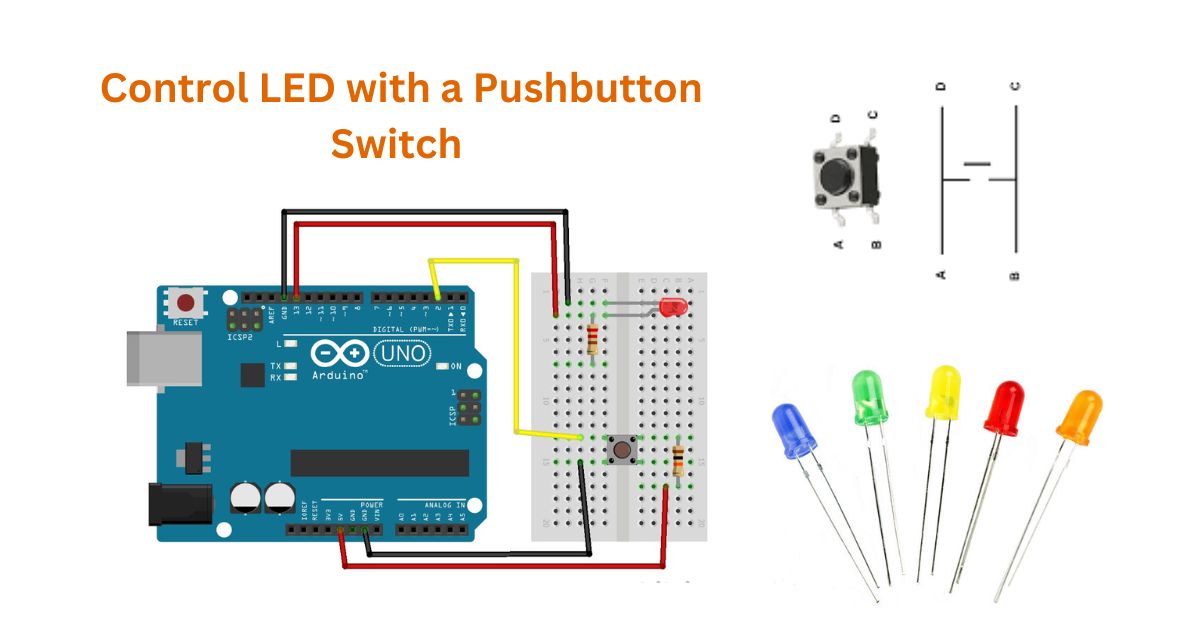
- LED with Switch Control: Create an interactive light switch.
- Arduino Sound Control System: Build a system that responds to sound.
- Automatic Street Light Controller: Design a light that turns on when it gets dark.
- Safety Alarm Using Ultrasonic Sensor: Create a distance-based alarm system.
- Simple Arduino Stopwatch: Build a digital timer.
- Line Follower Robot Car: Construct a robot that can follow a path.
- Temperature and Humidity Monitor: Make a device to measure environmental conditions.
- Light Sensor Activated Night Lamp: Create a smart lamp that turns on in the dark.
- Simple Traffic Light System: Build a miniature traffic light.
- Ultrasonic Distance Meter: Measure distances using sound waves.
- Plant Watering System: Create an automated system to water plants.
- Motion Detector Alarm: Build a simple security system.
- Digital Thermometer: Make an electronic temperature display.
- Simple Servo Motor Control: Learn to control motion with a servo motor.
Advanced Tips and Tricks for Arduino Projects
Feeling adventurous? Here are some advanced tips and tricks to take your Arduino projects to the next level:Common Mistakes to Avoid
- Incorrect Wiring: Double-check all your connections to ensure the components are properly wired to the Arduino board.
- Power Supply Issues: Make sure you are providing the correct voltage and current to power your Arduino and connected components.
- Programming Errors: Carefully review your code for syntax errors, logic flaws, and variable mismatches.
- Component Compatibility: Ensure that all the components you are using are compatible with your Arduino board and can work together effectively.
- Overheating: Be mindful of components that may generate heat, such as motors or high-power LEDs.
How to Troubleshoot Issues
- Use Serial Monitoring: The Arduino IDE’s serial monitor is a powerful tool for debugging your projects.
- Check Connections: Carefully inspect all your wiring and connections. Use a multimeter to verify voltages and continuity between points.
- Test Components Individually: Isolate components and test them individually to identify the source of the problem.
- Update Libraries and Drivers: Ensure you are using the latest versions of any libraries or drivers required for your project.
- Search Online Resources: The Arduino community is vast, and chances are someone has encountered a similar issue before.
Expanding Your Knowledge with Online Resources
- Arduino Official Documentation: The Arduino Documentation is a comprehensive resource for learning about Arduino, its features, and programming.
- Arduino Projects Book: The Arduino Projects Book is a great starting point for exploring a range of Arduino projects.
- Arduino Subreddit: The r/Arduino subreddit is an active community where you can ask questions, share your projects, and learn from others.
- Arduino Forums: The Arduino Forums are a valuable resource for getting help, sharing ideas, and finding solutions to common problems.
- YouTube Tutorials: There are many excellent Arduino tutorial videos on YouTube, covering a variety of projects and techniques.
Recommended Arduino Kits for Kids
Top Starter Kits for Beginners
- Arduino Starter Kit – This official kit from Arduino comes with a selection of components, and a detailed manual with projects to get you started.
- Elegoo UNO R3 Project Super Starter Kit – This kit includes an Arduino UNO R3 board, breadboard, jumper wires, resistors, LEDs, and sensors and modules.
- SunFounder Project Super Starter Kit for Arduino – This is another popular starter kit that comes with an Arduino UNO R3 board, breadboard, jumper wires, and electronic components.
Arduino Kits for Kids
- SparkFun Inventor’s Kit for Arduino – This kit is designed specifically for kids and includes an Arduino UNO board, breadboard, jumper wires, and a selection of sensors and components.
- Kuman 37-in-1 Sensor Module Kit – This kit includes a wide range of sensors and modules, making it great for exploring different types of projects.
- Vilros Arduino Uno 3 Ultimate Starter Kit – This kit comes with an Arduino UNO R3 board, breadboard, jumper wires, and electronic components.
Additional Accessories
- Jumper Wires – Having a variety of jumper wires in different lengths and colours can make building circuits easier and more organized.
- Breadboards – Extra breadboards allow you to build larger circuits and experiment with different configurations.
- Sensors and Modules – Investing in additional sensors and modules, such as ultrasonic sensors, servo motors, and LCDs, can open up a wide range of project possibilities.
- 3D Printing – If you can access a 3D printer, you can design and print custom enclosures, mounts, and other parts to enhance your Arduino projects.
Conclusion
Congratulations on starting your Arduino journey! You’ve learned the basics of electronics, programming, and problem-solving. Remember, the key to success is to keep exploring, experimenting, and learning.Encouragement to Continue Learning
Don’t stop here! There are countless projects you can create with Arduino, from simple LED blinkers to complex robotics and automation systems. Keep challenging yourself, try new things, and don’t be afraid to make mistakes – that’s how you learn and grow.Future Projects to Explore
Looking for more inspiration? Here are some exciting projects to explore next:- Build a weather station: Measure temperature, humidity, and atmospheric pressure.
- Create a home automation system: Control lights, appliances, and security.
- Design a robot: Navigate mazes or follow lines.
- Build a musical instrument: Use Arduino and sensors to create your tunes!
Resources for Further Education
If you’re hungry for more knowledge, check out these resources:- Nicrobit Learning Lab
- Arduino Education
- Adafruit Learning System
- Sparkfun Tutorials
- Instructables Arduino Projects