Imagine building a robot that picks up objects, a toy car that steers perfectly, or a camera that tracks movement—all with a tiny motor that follows your commands. Servo motors are the top choice for hobbyists, students, and builders creating projects that need precise control. These small, powerful motors drive everything from robots to moving figures in cool displays. In this Arduino servo motor tutorial, we’ll show you how to connect, code, and fix a servo motor using an Arduino, made simple for beginners and exciting for everyone. With Arduino’s easy setup and servo motors’ spot-on movements, you’ll create projects that wow in no time. We’ll break it down with clear steps, handy tips, and solutions to keep you on track. Ready to make something that moves? Let’s jump in and start building!
Why This Tutorial
This guide will:
- Show you how to use a servo motor with Arduino, no experience needed.
- Walk you through connecting, coding, and testing with easy steps.
- Give you tips to solve problems and make your projects shine.
Why Use Servo Motors with Arduino?
Servo motors move to exact spots, making them perfect for projects like robots, toy vehicles, or camera holders. Arduino’s Servo library lets you control them with just a few lines of code.
Fun Things You Can Build With Servo Motors:
- Robot Arms: Grab or move items.
- Moving Figures: Make props or models look alive.
- Toy Vehicles: Steer cars, boats, or planes.
- Camera Holders: Tilt cameras for photos or videos.
- DIY Projects: Build auto-opening doors and other gadgets.
Materials You’ll Need
You’ll need:
- Arduino Board: Uno, Nano, or Mega (like Arduino Uno Rev3).
- Servo Motor: Small 9g servo (like SG90) or bigger for stronger projects.
- Breadboard: To connect parts easily (like Breadboard 840 Tie-Points).
- Jumper Wires: Male-to-male wires for connections.
- Extra Power (Optional): Strong servos needing more power (like a 5v power adapter).
Step 1: What Are Servo Motors?
Before jumping into the setup, let’s understand what a servo motor is:
How Servo Motors Work:
Servo motors rotate to a specific position based on a control signal. The signal is called a Pulse Width Modulation (PWM) signal, where the pulse duration sets the angle.
- 0°: 1ms pulse duration
- 90°: 1.5ms pulse duration (neutral position)
- 180°: 2ms pulse duration
Types of Servo Motors:
- Standard Servo: Moves between 0° and 180°.
- Continuous Servo: Spins non-stop, with the signal controlling speed and direction.
Step 2: Connect the Components
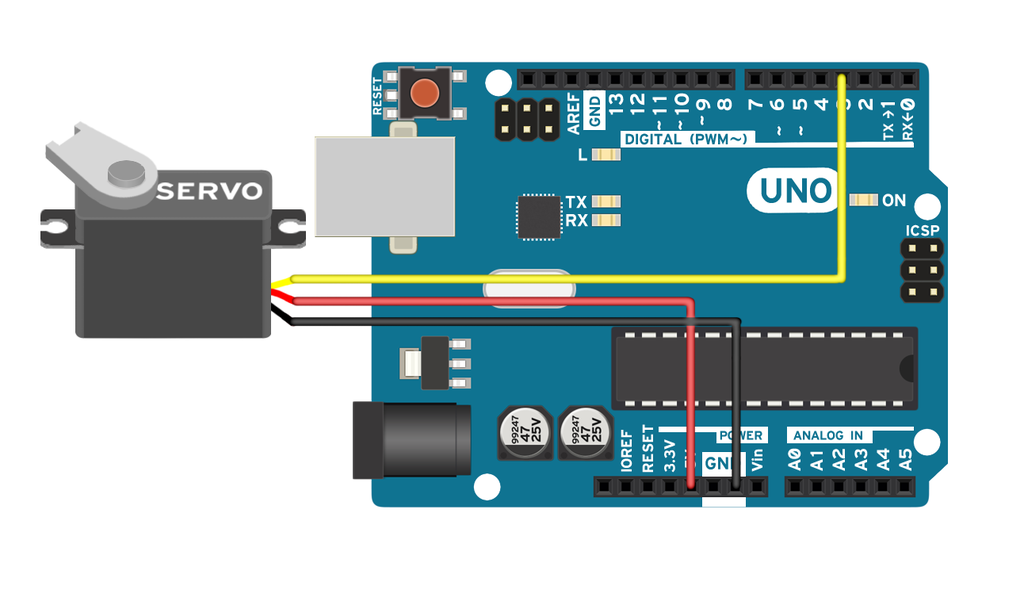
Follow these steps to wire the servo motor to your Arduino:
- Place the Servo Motor on the Breadboard: This simplifies wiring.
- Connect the Servo’s Pins:
- GND Pin: Connect to the GND rail of the breadboard.
- VCC Pin: Connect to the +5V rail of the breadboard.
- Signal Pin: Connect to pin 9 on the Arduino.
💡 Tip: If you’re using a high-power servo, connect an extra 5-6v power source to the servo’s VCC and GND pins to avoid overloading your Arduino.
💡 Tip: Add a 100µF capacitor between the servo’s VCC and GND to make the servo move smoothly.

Step 3: Write the Arduino Code
Open the Arduino IDE and write or copy and paste the following code to control your servo motor:
#include <Servo.h> // Include the Servo library

Servo myservo;     // Create a servo object

void setup() {
  myservo.attach(9); // Attach the servo to pin 9
}

void loop() {
  myservo.write(90);  // Move to 90 degrees
  delay(1000);        // Wait 1 second
  myservo.write(180); // Move to 180 degrees
  delay(1000);        // Wait 1 second
}
What The Code Does
This code makes your servo motor move like a pro! It sets up the motor and tells it to swing between two angles. Here’s how it works, step by step:
- #include <Servo.h>: This line brings in the Servo library, which has all the tools to control your motor easily.
- Servo myservo;: This creates a servo named myservo, like giving your motor a nickname.
- setup(): Runs once when you turn on the Arduino. It connects the servo to pin 9, so the Arduino knows where to send signals.
- loop(): Keeps running over and over. It tells the servo to:
-
- Move to 90 degrees and wait 1 second.
- Move to 180 degrees and wait 1 second.
- Repeat forever, making the servo swing back and forth.
Make It Yours: Want different angles? Change myservo.write(90) to any number between 0 and 180. Need slower or faster moves? Adjust delay(1000) to a bigger or smaller number (in milliseconds). For example, myservo.write(0) and delay(2000) would move the servo to 0 degrees and wait 2 seconds.
Level Up: You can control more servos! Just make a new servo object (like Servo myservo2), connect it to another pin (like pin 10), and use myservo2.write() to move it. Build a robot with multiple moving parts!
Try This: Change myservo.write(angle) to any angle (0–180°) or adjust delay() for faster or slower moves.
Step 4: Sending the Code to Arduino
- Plug your Arduino into your computer with a USB cable.
- Open the Arduino IDE, pick your board and COM port in Tools.
- Click Upload to send the code.
The servo should move between 90° and 180°, stopping for 1 second each time.
Step 5: Test and Troubleshoot
Testing
-
Check that the servo goes to 90°, waits, then to 180°, and repeats.
Common Problems
- Servo Won’t Move:
- Check all wires (GND, VCC, signal).
- Make sure the code is uploaded correctly.
- Shaky Moves:
- Use an extra power source for strong servos.
- Add a capacitor to the power wires.
- Wrong Angles:
- Check if your servo can do 0–180° (look at its instructions).
Advanced Tips for Servo Motor Control
-
Multiple Servo Motors: Controls several servos by creating multiple servo objects.
Example:Servo servo1, servo2; servo1.attach(9); servo2.attach(10); -
Smooth Movement: Gradually change the angle for smoother transitions.
for (int angle = 0; angle <= 180; angle++) { myservo.write(angle); delay(20); // Adjust delay for speed } -
Use Sensors: Add a kmob (potentiometers) or distance sensor (ultrasonic sensors) to control the servo’s position.
Tips for using servo motors with Arduino
- Servo motors have a limited torque, so make sure not to overload them.
- If you are using a powerful servo motor, you may need to use a separate power supply for the servo motor.
- Servo motors can be used to control a wide variety of devices, but they are best suited for applications where precise motion control is required.
Tips to Improve Your Project
- Power: Use the right voltage (5–6V) to keep the servo safe.
- Wires: Keep wires short to avoid signal issues.
- Extra Tools: Try the VarSpeedServo library for better speed control.
Conclusion
You’ve learned how to control a servo motor with Arduino, opening up tons of project ideas. Try using more servos, adding sensors, or building things like robot arms or camera holders. Share your projects and keep making cool stuff!
More to Explore:
- Arduino Servo Library Guide
- More Arduino Projects (Nicrobit Learning Lab)
FAQs
Q: Can I control a servo without a library?
A: Yes, with PWM signals, but the Servo library is much easier.
Q: How many servos can my Arduino control?
A: An Arduino Uno can control up to 12 servos, depending on pins and power.
Q: Why is my servo noisy?
A: It might not have enough power or be overloaded. Check your power source and load.