Ready to turn your ideas into real, working gadgets? Arduino is your ticket to the exciting world of electronics, and it’s taking Nigeria by storm! Whether you’re a student in Lagos, a hobbyist in Abuja, or a maker in Port Harcourt or Uyo, Arduino lets you build cool projects like robots, smart lights, or even an automatic plant watering system. In this Arduino beginner tutorial for Nigeria, we’ll show you how to get started with Arduino, step by step, with simple words and fun examples. No experience needed—just your curiosity and a spark of creativity. Let’s dive in and make something amazing!
Why This Guide?
This tutorial will:
- Teach you what Arduino is and how to use it, even if you’re new.
- Show you how to start your first project with the tools available in Nigeria.
- Share tips, local resources, and ideas to keep you inspired.
What Is Arduino?
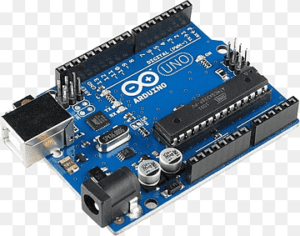
Arduino is an open-source platform that’s like a tiny computer you can program to control things like lights, sensors, motors, and more. It has two main parts:
- Arduino Board: A small board (like the Arduino Uno) that connects to electronic components.
- Arduino Software (IDE): Free software where you write instructions (called sketches) to tell the board what to do.
You can hook up sensors, buttons, or LEDs to the board, then program it to make them work together. For example, you could make a light turn on when it’s dark or a buzzer sound when someone’s near. It’s super easy to learn and perfect for beginners!
Why Use Arduino?
Arduino is a game-changer for Nigerian makers. With Arduino, your imagination is the limit, as Nigeria’s maker scene is buzzing with energy!. Here’s why it’s awesome:
- Build Fun Projects: Create things like a weather station, a door alarm, or a robot that follows lines—all with affordable parts.
- Learn Electronics: Understand circuits, sensors, and coding in a simple, hands-on way.
- Solve Local Problems: Make solutions like solar-powered lights or water level monitors for Nigerian homes and farms.
- Join a Growing Community: Connect with Nigerian makers in Lagos, Kano, Calabar, Uyo, or online to share ideas and get help.
- Affordable and Accessible: Arduino boards and kits are available in Nigeria through local shops or online platforms like Nicrobit.
Getting Started with Arduino in Nigeria
Ready to embark on your Arduino adventure? Here’s a quick guide to get you started:
Step 1: Get Your Arduino Tools
To start, you’ll need a few things. Don’t worry—most are easy to find in Nigeria or online. Here’s what you need:
- Arduino Board: The Arduino Uno is the best for beginners (costs ₦8,000–₦10,000). Other options include Arduino Nano or Arduino Mega.
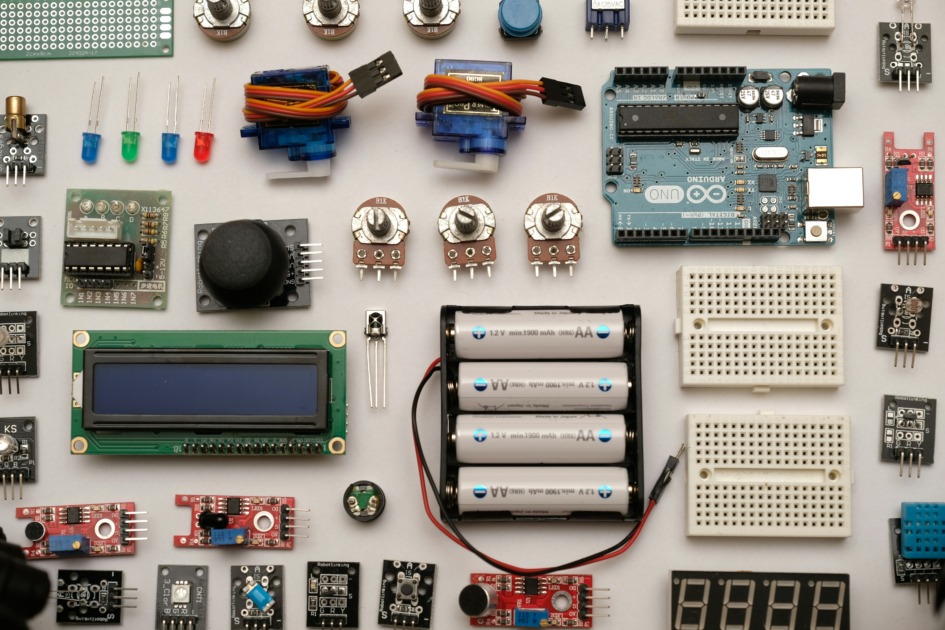
- Starter Kit (Optional): Kits like the Elecrow Arduino Starter Kit include sensors, LEDs, and wires (₦30,000–₦50,000).
- USB Cable: To connect your Arduino to a computer (usually comes with the board).
- Computer: Any laptop or PC with Windows, Mac, or Linux will work.
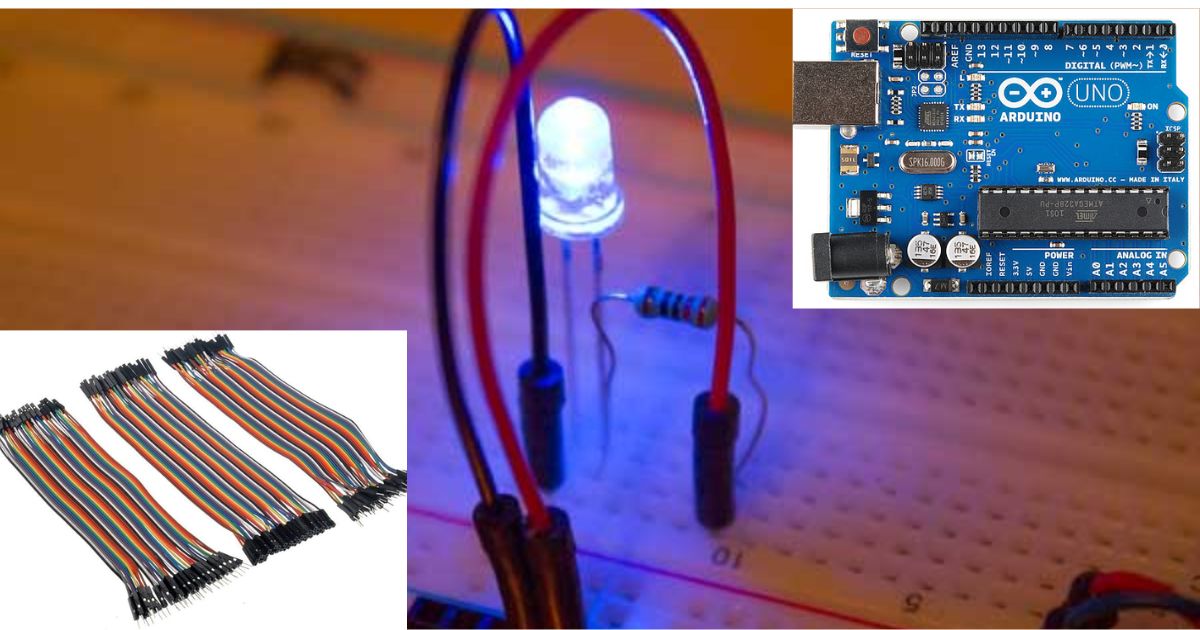
- Components: LEDs, resistors, a breadboard, jumper wires, and sensors like the HC-SR04 ultrasonic sensor (available separately or in kits).
- Power Supply: A 9V battery or USB power bank for portable projects.
Where to Buy in Nigeria
- Online: Jumia, Konga, or Nicrobit (local electronics supplier).
- Local Stores: Electronics markets like Alaba International Market (Lagos), Kantin Kwari (Kano), or Computer Village (Ikeja).
- Maker Spaces: Check hubs like CcHub in Lagos or nHub in Jos for kits and workshops.
Step 2: Install the Arduino Software
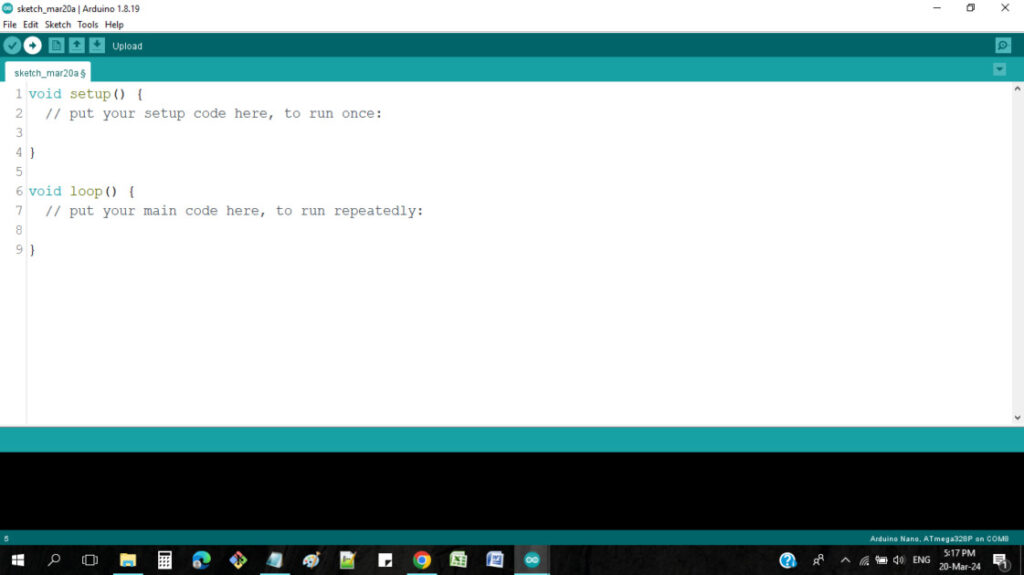
The Arduino IDE (Integrated Development Environment) is the free software you’ll use to write and send code to your board. Here’s how to set it up:
- Visit www.arduino.cc and download the Arduino IDE for your computer (Windows, Mac, or Linux).
- Install the software by following the on-screen instructions.
- Open the Arduino IDE. It looks like a blank page where you’ll write your code.
If you’re in an area with slow internet, download the IDE at a café or use a friend’s connection. You only need to download it once!
Step 3: Try Your First Arduino Project
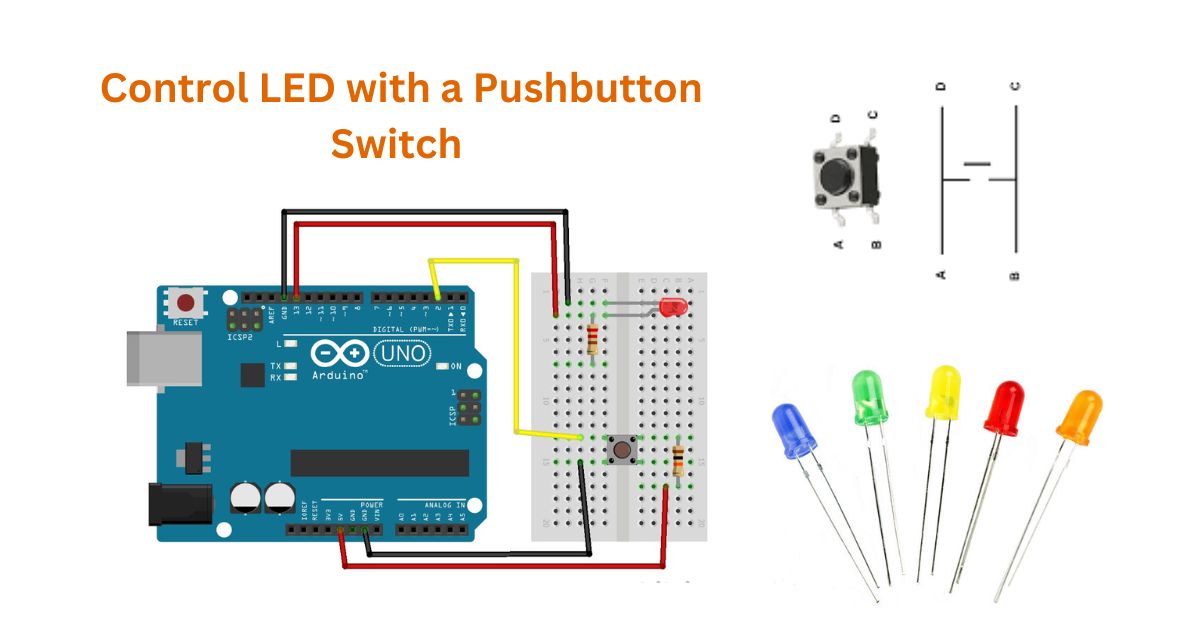
Let’s build a simple project to blink an LED—a classic starter that’s fun and easy! This will teach you how to connect components and write code.
What You’ll Need
- Arduino Uno board
- LED (any colour)
- 220-ohm resistor
- Breadboard
- Jumper wires
- USB cable
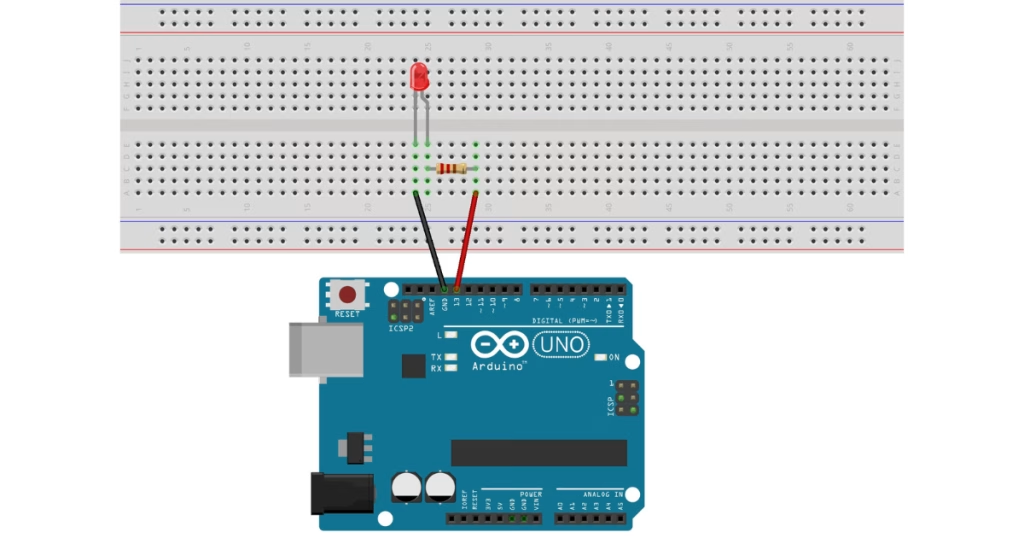
Wiring It Up
- Plug the LED into the breadboard:
- Long leg (positive) to a breadboard row.
- Short leg (negative) to another row.
- Connect the resistor from the LED’s negative leg to the breadboard’s GND rail.
- Use jumper wires to connect:
- Arduino pin 13 to the LED’s positive leg.
- Arduino GND to the breadboard’s GND rail.
Writing the Code
Open the Arduino IDE and try this sketch:
void setup() {
  pinMode(13, OUTPUT); // Set pin 13 as output
}

void loop() {
  digitalWrite(13, HIGH); // Turn LED on
  delay(1000); // Wait 1 second
  digitalWrite(13, LOW); // Turn LED off
  delay(1000); // Wait 1 second
}
What the Code Does
- setup(): Runs once to set pin 13 as an output (where the LED is connected).
- loop(): Runs forever, turning the LED on for 1 second, then off for 1 second, making it blink.
Uploading the Code
- Connect your Arduino to your computer with the USB cable.
- In the Arduino IDE, go to Tools > Board and select “Arduino Uno.”
- Go to Tools > Port and choose the port (e.g., COM3 on Windows or /dev/ttyUSB0 on Linux).
- Click the Upload button (right arrow) to send the code.
- Watch your LED blink every second!
Step 4: Explore More Projects
Now that you’ve blinked an LED, try these beginner-friendly projects to level up:
- Automatic Light: Use a light sensor (LDR) to turn on an LED when it’s dark.
- Distance Alarm: Connect an HC-SR04 ultrasonic sensor to buzz when something’s too close.
- Temperature Monitor: Use a DHT11 sensor to show temperature on a display.
- Smart Plant Waterer: Program a soil moisture sensor to water plants when they’re dry.
Example: Distance Alarm Project
Here’s a quick sketch for an ultrasonic sensor alarm:
#include <NewPing.h>

#define TRIGGER_PIN  3
#define ECHO_PIN     2
#define BUZZER_PIN   8
#define MAX_DISTANCE 200

NewPing sonar(TRIGGER_PIN, ECHO_PIN, MAX_DISTANCE);

void setup() {
  pinMode(BUZZER_PIN, OUTPUT);
  Serial.begin(9600);
}

void loop() {
  delay(50);
  int distance = sonar.ping_cm();
  if (distance > 0 && distance < 30) { // Object closer than 30cm
    digitalWrite(BUZZER_PIN, HIGH);
    Serial.println("Object too close!");
  } else {
    digitalWrite(BUZZER_PIN, LOW);
    Serial.println("All clear.");
  }
}- What It Does: Beeps a buzzer if an object is within 30 cm.
- Setup: Connect the HC-SR04 (trigger to pin 3, echo to pin 2) and a buzzer to pin 8.
- Library: Install the NewPing library via Sketch > Include Library > Manage Libraries.
Step 5: Learn from Resources
Nigeria’s maker community and online resources make learning Arduino fun and easy. Check these out:
- Official Arduino Website: www.arduino.cc for tutorials, examples, and the Arduino Forum.
- Nigerian Suppliers: Nicrobit for tutorials and kits.
- Global Platforms: Instructables (www.instructables.com) and SparkFun (learn.sparkfun.com) for project ideas.
- YouTube Channels: Channels like “GreatScott!” and “DroneBot Workshop” offer beginner-friendly videos.
- Local Communities:
- CcHub Lagos: Join workshops or maker meetups.
- nHub Jos: Connect with makers for training and events.
- Facebook Groups: Search for “Arduino Nigeria” or “Nigerian Makers” to join discussions.
- WhatsApp Groups: Ask local electronics shops or maker spaces for group links.
Step 6: Troubleshoot Common Issues
Running into problems? Don’t worry—here’s how to fix common beginner issues:
-
Arduino Not Connecting:
-
- Check the USB cable (use a data cable, not just a charging one).
- Ensure the correct board and port are selected in Tools.
- Install drivers from www.arduino.cc.
-
Code Not Working:
-
- Double-check wiring (e.g., LED polarity or sensor pins).
- Copy example code from the Arduino IDE (File > Examples) to test.
-
Components Not Responding:
-
- Test components with a simple sketch (e.g., blink for LEDs, serial output for sensors).
- Check power (use a multimeter if possible).
-
No Internet for Downloads:
-
- Visit a cyber café or use a friend’s connection to download the IDE or libraries.
- Save tutorials offline for later use.
Step 7: Join Nigeria’s Maker Community
Nigeria’s maker scene is growing fast, and you can be part of it! Here’s how:
- Attend Workshops: Look for Arduino events at CcHub, nHub, or universities like UNILAG or ABU Zaria.
- Join Online Groups: Follow “Nigerian Makers” on Facebook or join WhatsApp groups for tips and project showcases.
- Showcase Your Work: Share your projects on social media with hashtags like #ArduinoNigeria or #NigerianMakers.
- Collaborate: Team up with local makers to build solutions for Nigeria, like solar chargers or flood detectors.
Step 8: Project Ideas for Nigeria
Arduino projects can solve real problems and spark creativity. Try these ideas inspired by Nigerian needs:
- Solar-Powered Light: Use a solar panel and light sensor to light up homes without steady power.
- Water Level Monitor: Build a sensor to alert farmers when water tanks are low.
- Traffic Light Trainer: Create a mini traffic light system to teach kids road safety.
- Smart Security Alarm: Use a motion sensor to detect intruders and send alerts via a buzzer or SMS (with a GSM module).
Example Project Plan: Water Level Monitor
- Components: HC-SR04 sensor, Arduino Uno, buzzer, LED.
- Goal: Beep and light an LED if the water level is too low.
- Code Snippet:
#include <NewPing.h>

#define TRIGGER_PIN  3
#define ECHO_PIN     2
#define BUZZER_PIN   8
#define LED_PIN      13
#define MAX_DISTANCE 100

NewPing sonar(TRIGGER_PIN, ECHO_PIN, MAX_DISTANCE);

void setup() {
  pinMode(BUZZER_PIN, OUTPUT);
  pinMode(LED_PIN, OUTPUT);
  Serial.begin(9600);
}

void loop() {
  delay(50);
  int distance = sonar.ping_cm(); // Distance to water surface
  if (distance > 80) { // Tank almost empty
    digitalWrite(BUZZER_PIN, HIGH);
    digitalWrite(LED_PIN, HIGH);
    Serial.println("Low water level!");
  } else {
    digitalWrite(BUZZER_PIN, LOW);
    digitalWrite(LED_PIN, LOW);
    Serial.println("Water level OK.");
  }
}
Conclusion
Arduino is your key to creating amazing projects, and Nigeria’s maker community is the perfect place to start! From blinking LEDs to building smart systems, you’ve got everything you need to turn ideas into reality. With affordable tools, local resources, and a supportive community, there’s no limit to what you can do. So grab an Arduino, try a project, and share your creations with #ArduinoNigeria. Let’s keep the maker spirit alive and build something incredible!
More to Explore:
- Arduino Official Website
- Nicrobit Learning Lab
- Instructables Arduino Projects
- SparkFun Learn
- Arduino Forum
FAQs
Q: Where can I buy an Arduino in Nigeria?
A: Try Jumia, Konga, Nicrobit, or electronics markets like Computer Village (Ikeja) or Alaba International Market (Lagos).
Q: Do I need to know coding to use Arduino?
A: No! The Arduino IDE has simple examples, and this guide starts with easy projects like blinking an LED.
Q: Is Arduino expensive in Nigeria?
A: An Arduino Uno costs ₦5,000–₦10,000, and starter kits are ₦15,000–₦30,000, making it affordable for beginners.
Q: What if I don’t have reliable internet for downloads?
A: Download the Arduino IDE at a cyber café or borrow a friend’s connection. Save tutorials offline for later.
Q: Can Arduino help solve problems in Nigeria?
A: Yes! Projects like solar lights, water monitors, or security alarms can address local needs like power outages or farming challenges.