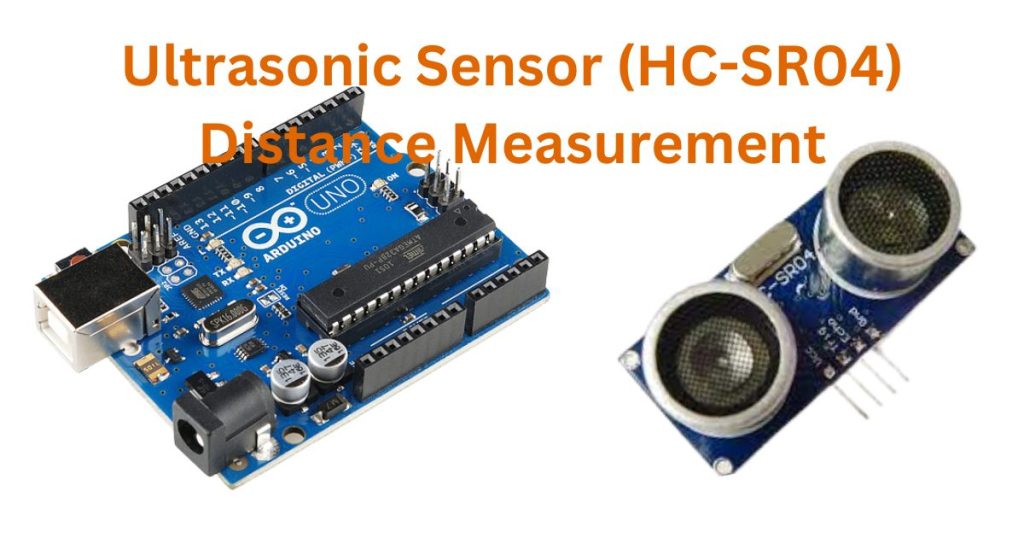
How do delivery robots navigate crowded warehouses? What stops a car from hitting a wall in a narrow garage? How can a water tank signal when it’s low? The HC-SR04 ultrasonic sensor provides the answer. This compact sensor measures distance with precision when paired with Arduino. It enables students, hobbyists, and makers to build practical projects in any environment—urban labs, rural workshops, or school classrooms. Need a robot that avoids obstacles, a parking aid for tight spaces, or a liquid level monitor for tanks? This sensor delivers accurate data for your project. Its straightforward design requires minimal wiring and code, making it accessible for beginners. In this guide, you connect the HC-SR04 to Arduino, write precise code, and build a smart liquid level monitor. Clear steps, tested examples, and focused troubleshooting ensure you succeed. Begin your project now.
Why Use the HC-SR04 Sensor?
The HC-SR04 excels for Arduino projects because it:
- Detects distances from 2 cm to 400 cm with 3 mm accuracy.
- Uses sound waves, unaffected by light or colour, unlike infrared sensors.
- Requires simple wiring and coding, suitable for beginners.
- Supports diverse applications.
It fits projects like:
- Robots that detect obstacles.
- Parking systems that monitor proximity.
- Bins that open when hands approach.
- Tanks that track liquid levels.
How the HC-SR04 Works
The HC-SR04 measures distance using ultrasonic sound waves, inaudible to humans. The process:
- Trigger Pin sends a brief sound pulse.
- Pulse hits an object and returns.
- Echo Pin measures the return time.
- Arduino calculates distance:
Distance = (Speed of Sound × Time) / 2- Sound speed is 343 m/s (0.0343 cm/µs) at 20°C.
- Divide by 2 for round-trip travel.
Sensor Pins
| Pin | Function | Arduino Connection |
|---|---|---|
| VCC | Power (5V) | 5V |
| GND | Ground | GND |
| Trig | Sends pulse | Pin 10 |
| Echo | Receives pulse | Pin 9 |
Note: Temperature alters sound speed. Step 4 adjusts for this.

What You Need
- Arduino Board: Uno, Mega, or Nano (Uno suits beginners).
- HC-SR04 Ultrasonic Sensor: Available at online retailers or electronics shops.
- Jumper Wires: Male-to-male, minimum 4.
- Breadboard: Optional for organised wiring.
- Computer: With Arduino IDE installed (free at arduino.cc).
- USB Cable: Typically included with Arduino.
Optional for projects:
- LED or Buzzer: For alerts.
- 220Ω Resistor: For LEDs.
- LCD Display: To show distances.
- DHT11 Sensor: For temperature correction.
- Push-Button: For manual triggers.
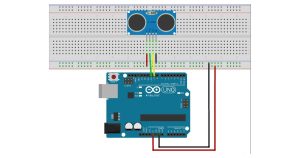
Step 1: Wire the HC-SR04 to the Arduino
Connect the HC-SR04 to your Arduino.
Wiring Steps
- Place HC-SR04 on a breadboard or connect with jumper wires.
- Wire:
- VCC to Arduino 5v.
- GND to Arduino GND.
- Trig to Arduino Pin 10.
- Echo to Arduino Pin 9.
Wiring Table
| HC-SR04 Pin | Arduino Pin |
|---|---|
| VCC | 5V |
| GND | GND |
| Trig | 10 |
| Echo | 9 |
Notes
- Compatible with Arduino Mega or Nano.
- Verify connections to prevent errors.
- For 3.3v boards (e.g., ESP32), use a voltage divider (1kΩ and 2kΩ resistors) on the Echo pin to reduce from 5v to 3.3v.
Step 2: Basic Arduino Code for Distance
This code measures distance and displays it in the Serial Monitor.
Arduino Code
#define TRIG_PIN 10  // Trigger pin
#define ECHO_PIN 9   // Echo pin

void setup() {
  Serial.begin(9600); // Start Serial Monitor
  pinMode(TRIG_PIN, OUTPUT); // Trigger as output
  pinMode(ECHO_PIN, INPUT);  // Echo as input
}

void loop() {
  long duration;
  float distance;

  // Clear trigger
  digitalWrite(TRIG_PIN, LOW);
  delayMicroseconds(2);

  // Send 10µs pulse
  digitalWrite(TRIG_PIN, HIGH);
  delayMicroseconds(10);
  digitalWrite(TRIG_PIN, LOW);

  // Measure echo time
  duration = pulseIn(ECHO_PIN, HIGH);

  // Calculate distance (cm)
  distance = (duration * 0.0343) / 2;

  // Display in Serial
  Serial.print("Distance: ");
  Serial.print(distance);
  Serial.println(" cm");

  delay(500); // Wait 0.5 seconds
}
How It Works
- Defines Trig and Echo pins.
- Starts Serial Monitor at 9600 baud; sets Trig as output, Echo as input.
- Sends a 10µs pulse via Trig.
- Measures echo time with
pulseIn. - Calculates distance:
(duration * 0.0343) / 2for cm. - Outputs distance every 0.5 seconds.
Upload Code
- Connect Arduino to the computer via USB.
- Open Arduino IDE, paste the code.
- Select Tools > Board > Arduino Uno.
- Choose port (Tools > Port).
- Click Upload (arrow icon).
Step 3: Use NewPing Library
The NewPing library streamlines coding and enhances reliability.
Install NewPing
- In Arduino IDE, go to Sketch > Include Library > Manage Libraries.
- Search “NewPing,” click Install.
NewPing Code
#include <NewPing.h>

#define TRIGGER_PIN  10
#define ECHO_PIN     9
#define MAX_DISTANCE 400 // Max distance in cm

NewPing sonar(TRIGGER_PIN, ECHO_PIN, MAX_DISTANCE);

void setup() {
  Serial.begin(9600); // Start Serial Monitor
}

void loop() {
  delay(50); // Wait between pings
  int distance = sonar.ping_cm(); // Measure distance in cm
  Serial.print("Distance: ");
  Serial.print(distance ? distance : MAX_DISTANCE);
  Serial.println(" cm");
}
Why NewPing?
- Uses one line (
sonar.ping_cm()) for distance. - Supports 20 pings per second.
- Filters invalid readings.
Test NewPing
- Upload code.
- Open Serial Monitor (9600 baud).
- Move an object 10–100 cm from the sensor, and verify distances.
NewPing Features
- Inches:
sonar.ping_in()for inches. - Raw Time:
sonar.ping()for echo time in µs.
Step 4: Adjust for Temperature
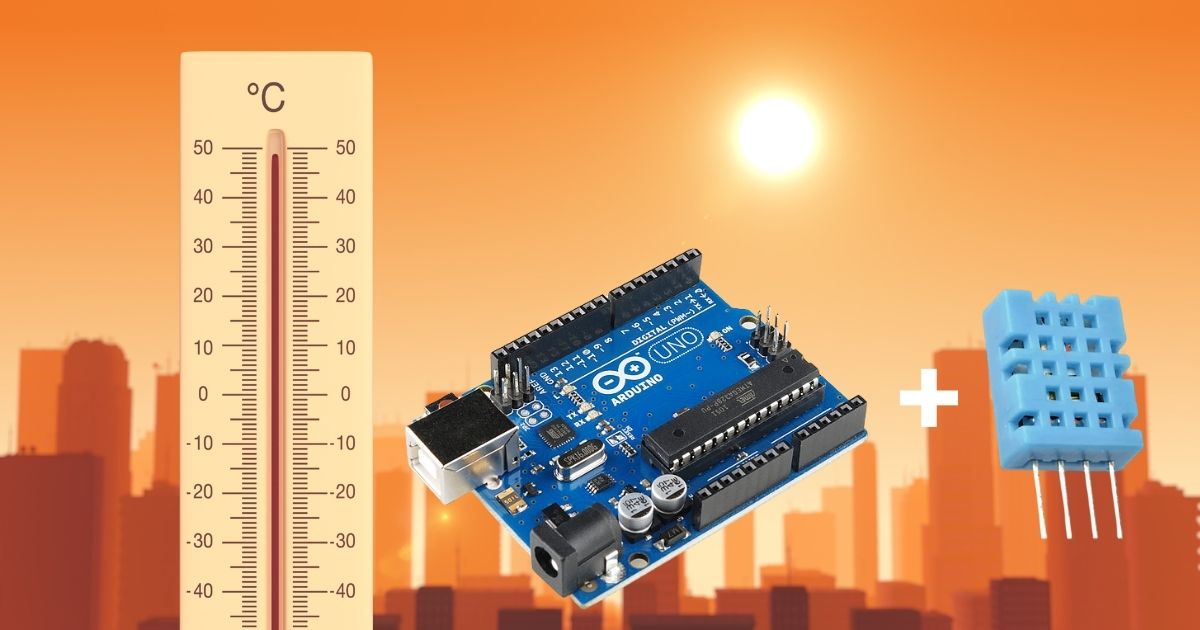
Temperature impacts sound speed. Use a DHT11 sensor to correct measurements.
Wire DHT11
- VCC to Arduino 5V.
- GND to Arduino GND.
- Data to Arduino Pin 7.
- Add a 10kΩ pull-up resistor between DHT11 VCC and Data.
Temperature-Adjusted Code
#include <NewPing.h>
#include <DHT.h>

#define TRIGGER_PIN  10
#define ECHO_PIN     9
#define MAX_DISTANCE 400
#define DHT_PIN      7
#define DHT_TYPE     DHT11

NewPing sonar(TRIGGER_PIN, ECHO_PIN, MAX_DISTANCE);
DHT dht(DHT_PIN, DHT_TYPE);

void setup() {
  Serial.begin(9600);
  dht.begin();
}

void loop() {
  delay(50);
  float temp = dht.readTemperature(); // Read temperature (°C)
  if (isnan(temp)) {
    Serial.println("Failed to read temperature!");
    return;
  }
  // Adjust sound speed: 331.4 + 0.606 * temp (m/s)
  float soundSpeed = (331.4 + 0.606 * temp) / 10000; // cm/µs
  int duration = sonar.ping(); // Raw echo time (µs)
  float distance = (duration * soundSpeed) / 2; // Distance in cm

  Serial.print("Temp: ");
  Serial.print(temp);
  Serial.print(" C, Distance: ");
  Serial.print(distance);
  Serial.println(" cm");
}
How It Works
- Reads temperature with DHT11.
- Adjusts sound speed: Speed = 331.4 + 0.606 × Temp (m/s).
- Calculates distance using adjusted speed.
Notes
- Install DHT library via Sketch > Include Library > Manage Libraries.
- Verify DHT11 wiring to prevent errors.
- Essential for outdoor or variable climates.
Step 5: Use Multiple HC-SR04 Sensors
Use two HC-SR04 sensors for 360-degree detection.
Wiring
- Sensor 1: VCC to 5V, GND to GND, Trig to Pin 10, Echo to Pin 9.
- Sensor 2: VCC to 5V, GND to GND, Trig to Pin 6, Echo to Pin 5.
Code
#include <NewPing.h>

#define TRIG_PIN1  10
#define ECHO_PIN1  9
#define TRIG_PIN2  6
#define ECHO_PIN2  5
#define MAX_DISTANCE 400

NewPing sonar1(TRIG_PIN1, ECHO_PIN1, MAX_DISTANCE);
NewPing sonar2(TRIG_PIN2, ECHO_PIN2, MAX_DISTANCE);

void setup() {
  Serial.begin(9600);
}

void loop() {
  delay(50);
  int distance1 = sonar1.ping_cm(); // Front sensor
  int distance2 = sonar2.ping_cm(); // Side sensor
  Serial.print("Front: ");
  Serial.print(distance1 ? distance1 : MAX_DISTANCE);
  Serial.print(" cm, Side: ");
  Serial.print(distance2 ? distance2 : MAX_DISTANCE);
  Serial.println(" cm");
}
Result
Measures distances from two directions, useful for navigation.
Step 6: Add Push-Button Trigger
Use a push-button to trigger measurements on demand.
Wiring
- Button: One leg to Pin 8, other to GND; add 10kΩ pull-up resistor to 5V.
- HC-SR04: VCC to 5V, GND to GND, Trig to Pin 10, Echo to Pin 9.
Code
#include <NewPing.h>

#define TRIGGER_PIN  10
#define ECHO_PIN     9
#define BUTTON_PIN   8
#define MAX_DISTANCE 400

NewPing sonar(TRIGGER_PIN, ECHO_PIN, MAX_DISTANCE);

void setup() {
  Serial.begin(9600);
  pinMode(BUTTON_PIN, INPUT_PULLUP);
}

void loop() {
  if (digitalRead(BUTTON_PIN) == LOW) { // Button pressed
    delay(50);
    int distance = sonar.ping_cm();
    Serial.print("Distance: ");
    Serial.print(distance ? distance : MAX_DISTANCE);
    Serial.println(" cm");
    delay(500); // Debounce button
  }
}
Result
Press the button to measure distance, saves power for battery projects.
Step 7: Sample Project: Smart Liquid Level Monitor
Build a smart liquid level monitor with an LCD and a button.
Components
- Arduino Uno.
- HC-SR04 sensor.
- 16×2 LCD with I2C.
- Push-button.
- Jumper wires, breadboard.
Wiring
- HC-SR04: VCC to 5V, GND to GND, Trig to Pin 10, Echo to Pin 9.
- LCD: VCC to 5V, GND to GND, SDA to A4, SCL to A5.
- Button: One leg to Pin 8, other to GND; 10kΩ pull-up to 5V.
Code
#include <NewPing.h>
#include <LiquidCrystal_I2C.h>

#define TRIGGER_PIN  10
#define ECHO_PIN     9
#define BUTTON_PIN   8
#define MAX_DISTANCE 400

NewPing sonar(TRIGGER_PIN, ECHO_PIN, MAX_DISTANCE);
LiquidCrystal_I2C lcd(0x27, 16, 2);

void setup() {
  Serial.begin(9600);
  lcd.begin();
  lcd.backlight();
  pinMode(BUTTON_PIN, INPUT_PULLUP);
}

void loop() {
  if (digitalRead(BUTTON_PIN) == LOW) { // Button pressed
    delay(50);
    int distance = sonar.ping_cm();
    lcd.clear();
    lcd.setCursor(0, 0);
    lcd.print("Level: ");
    lcd.print(distance ? distance : MAX_DISTANCE);
    lcd.print(" cm");
    Serial.print("Level: ");
    Serial.print(distance ? distance : MAX_DISTANCE);
    Serial.println(" cm");
    delay(500); // Debounce button
  }
}
Steps
- Wire components.
- Upload code.
- Press the button to see the distance on the LCD and the Serial Monitor.
Use
Monitors liquid levels in tanks, ideal for homes or farms worldwide.
Step 8: Troubleshoot Issues
Address common problems.
- No Readings:
- Verify wiring: VCC to 5V, GND to GND, Trig to Pin 10, Echo to Pin 9.
- Use a data USB cable, not a charging-only.
- Test with another sensor.
- Inconsistent Readings:
- Keep objects 2–400 cm away.
- Use hard surfaces (e.g., wall, book).
- Add 1µF capacitor between VCC and GND.
- Secure wires.
- Serial Monitor Blank:
- Set 9600 baud in Serial Monitor.
- Reconnect Arduino, restart IDE.
- Confirm
Serial.begin(9600).
- Incorrect Distances:
- Match code pins to wiring.
- Test with known distance (e.g., 20 cm).
- Use temperature-adjusted code for varying climates.
- DHT11 Errors:
- Check
#include <DHT.h>. - Verify DHT11 wiring and 10kΩ resistor.
- Reinstall DHT library.
- Check
- Button Fails:
- Confirm pull-up resistor and Pin 8 wiring.
- Test with
digitalRead(8).
- LCD Blank:
- Verify I2C address (use scanner sketch).
- Check SDA/SCL wiring (A4/A5).
HC-SR04 vs. Other Sensors
| Feature | HC-SR04 | Infrared (e.g., Sharp GP2Y0A21) |
|---|---|---|
| Range | 2–400 cm | 10–80 cm |
| Accuracy | 3 mm | 5 mm |
| Light Sensitivity | None (sound-based) | Affected by light/colour |
| Use Case | Obstacle detection, monitoring | Short-range detection |
Choose: HC-SR04 for extended range and light-independent projects.
Real-World Uses
- Robots: Detect obstacles.
- Parking Aids: Monitor proximity.
- Smart Bins: Open lids automatically.
- Liquid Monitors: Track tank levels.
- Motion Detectors: Sense movement.
Conclusion
You can now use the HC-SR04 ultrasonic sensor with Arduino. You know how to wire it, code it, and build a smart liquid level monitor. Try multiple sensors, buttons, or temperature corrections for more projects. The HC-SR04 functions in any environment.
Explore more projects at Nicrobit Learning Lab. Continue building.
Resources
- Arduino Official Site
- NewPing Library
- SparkFun Ultrasonic Guide
- Nicrobit Learning Lab
FAQs
Q: Can HC-SR04 work with Arduino Nano or Mega?
A: Yes. Connect Trig and Echo to any digital pins, and update the code.
Q: Why use the NewPing library?
A: It simplifies code, increases speed, and filters errors.
Q: Why are distances incorrect?
A: Ensure objects are 2–400 cm away, use hard surfaces, and verify wiring.
Q: Does HC-SR04 require internet?
A: No. The Internet is only for IoT features.
Q: How do I trigger measurements manually?
A: Add a button to Pin 8, use digitalRead() (see Step 6).
Q: HC-SR04 or infrared for obstacle detection?
A: HC-SR04 for longer range and no light interference.
Q: Why is my LCD not displaying?
A: Check I2C address and SDA/SCL wiring (A4/A5).
Q: Can I use multiple HC-SR04 sensors?
A: Yes, connect to different pins, use separate NewPing objects (see Step 5).